AI access guide
AutoCount AI access: authorize and revoke in AcctBridge Portal
Use real Portal screenshots and a short recording to review invoice-read permissions, choose an AutoCount book and revoke an AI client authorization.
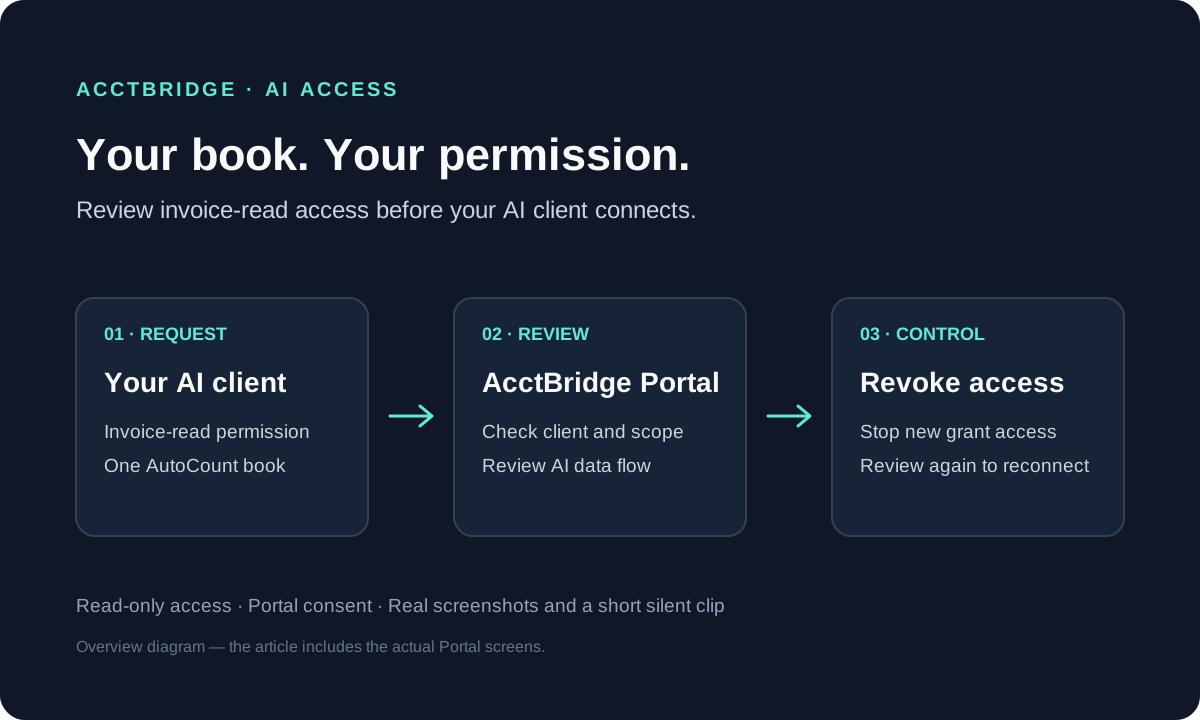
Why this matters
An AI client needs your permission to read your connected accounting book. AcctBridge Portal lets you check the client, select one Accounting Instance and review the requested permissions before authorizing it.
This guide follows the AutoCount invoice-read consent and revocation screens. The screenshots and silent clip are real Portal captures, with the book and client identifier hidden. They show authorization screens; they do not show a Codex conversation or an accounting answer.
AutoCount read-only MCP access is now open through Codex for authorized, connected Accounting Instances. Start in Portal, connect your intended book and review each client authorization. SQL Accounting and Claude Code query verification follow separately.
1. Start with the intended AutoCount book
Open your Workspace and AutoCount Accounting Instance in Portal. Its Windows connector and outbound Tunnel must be connected, and the selected read-only MCP route must be enabled. Keep the accounting machine online while using connected queries.
Start the authorization request from your chosen MCP client. Access through a customer-owned external MCP client is the first AI rollout path; this article begins at Portal consent, after client configuration. The official Codex MCP guide in Sources explains client setup.
2. Check the client, resource and permission
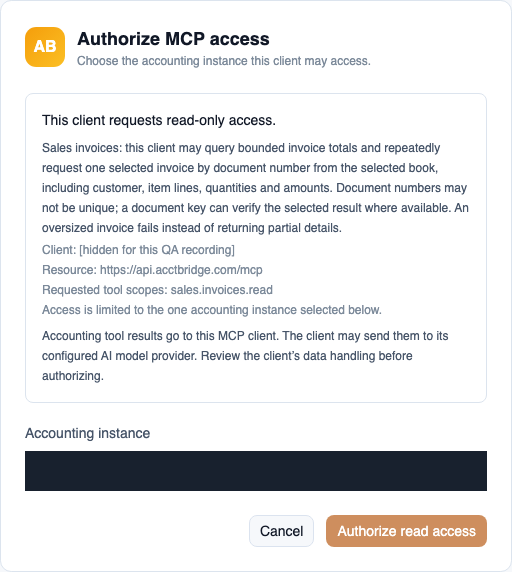
Confirm that the requesting client is the one you started. The AcctBridge resource is https://api.acctbridge.com/mcp. Select the intended AutoCount Accounting Instance rather than relying on a previously selected book.
For invoice-only access, the requested permission should be sales.invoices.read. If the client asks for other permissions, cancel and adjust its request before authorizing. A client can request broader read permissions during its initial setup.
Invoice-read access permits bounded totals and repeated single-invoice lookups in the selected book. A detail lookup can reveal customer information, item lines, quantities and amounts. The grant is reusable; it is not restricted to one preapproved invoice and includes no accounting write permission.
3. Review data flow and authorize
Read the notice explaining that query results go to your MCP client and may then go to its configured AI model provider. Review that provider’s data-handling terms before deciding whether to share accounting results.
When the client, book and permission match your intent, choose Authorize read access. Portal shows authorization progress and then a completion message. Cancel if the details do not match your request.
The silent 3.76-second clip below shows those Portal steps. It is a generic authorization recording with the book and client identifier hidden. It contains no query result, model conversation or revocation footage. The two paragraphs above provide the same steps in text.
4. Use precise read-only questions
After authorization, ask your connected client for a specific date range in the selected AutoCount book. Check the returned book, dates and complete result before using an answer. A failed query is not evidence of zero sales.
This article explains the authorization journey. A complete CLI installation tutorial and recorded AI conversation will be provided separately. CSV/Excel delivery, email execution, accounting writes and Portal BYOK have their own rollout stages.
5. Revoke the exact client authorization
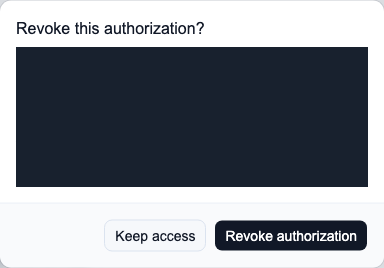
In Workspace settings, open AI client authorizations. Find the exact client and Accounting Instance you want to revoke. Read the confirmation, then choose Revoke authorization.
Revocation prevents new access through that grant. Another authorization can still work, and data already received by the client or model provider is not deleted by revoking Portal access. Reconnect by starting a new request and reviewing a fresh Portal consent.
Removing a local server entry or logging out of the MCP client is separate from Portal revocation. Use Portal to revoke the grant, then follow your client’s instructions for local cleanup.
6. Understand access and costs
Ordinary self-service middleware, cloud gateway and API access have separate free usage limits. Eligible customer-owned AI access receives a 60-day AcctBridge platform-fee trial, starting at the first successful connected AI operation. A platform service fee follows; its price will be announced separately.
Your Codex client and model-provider charges remain yours. AcctBridge-provided model credits are paid from first use and have no free period. Human installation or support is separately negotiated.